Getting Started
Requirements
DebugKit Runtime requires Unity 2022.3 LTS or newer. It is fully optimized for Unity 6.
Unity 2022.3 LTS+
Unity 6 ready
Auto-bootstrap
No scene setup
Installation
Import the package
Install DebugKit Runtime via the Unity Asset Store, or by importing the package into your project.
Optional: create DebugKit Settings
- Open the settings window via Tools → DivinityCodes → DebugKit Runtime.
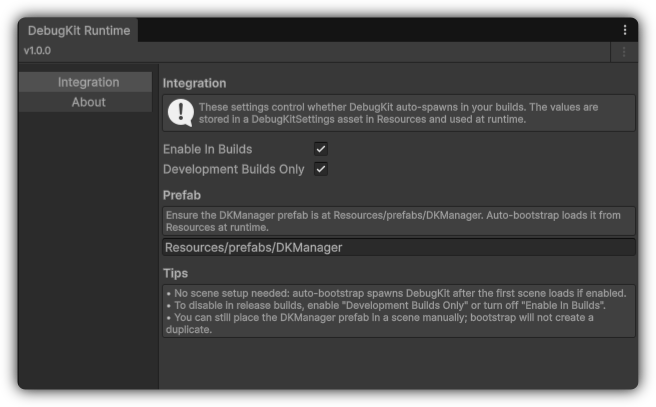
- Open the Integration tab to control how the tool behaves in builds:
- Enable In Builds: Master toggle to include or exclude the toolkit from your exported application.
- Development Builds Only: When checked, DebugKit strips itself from Release builds so end users never see the debug panel.
- Prefab Path: Confirms the location of the
DKManagerprefab. Auto-bootstrap uses this path to spawn the toolkit into your first scene.
Build
Create your build via Build Profiles or the Build Settings window. DebugKit auto-spawns after the first scene loads, as long as your Integration settings match the build type (for example, Development vs Release). No manual scene placement is required.
Next steps
- Learn each module in Features
- Wire custom controls with the Control Panel API
- Browse common answers in the FAQ