Admin Control Panel
The Admin Control Panel (ACP) provides a runtime dashboard of controls: a built-in Time Scale block (game speed, physics scaling, reset) and custom controls exposed from your scripts via attributes.
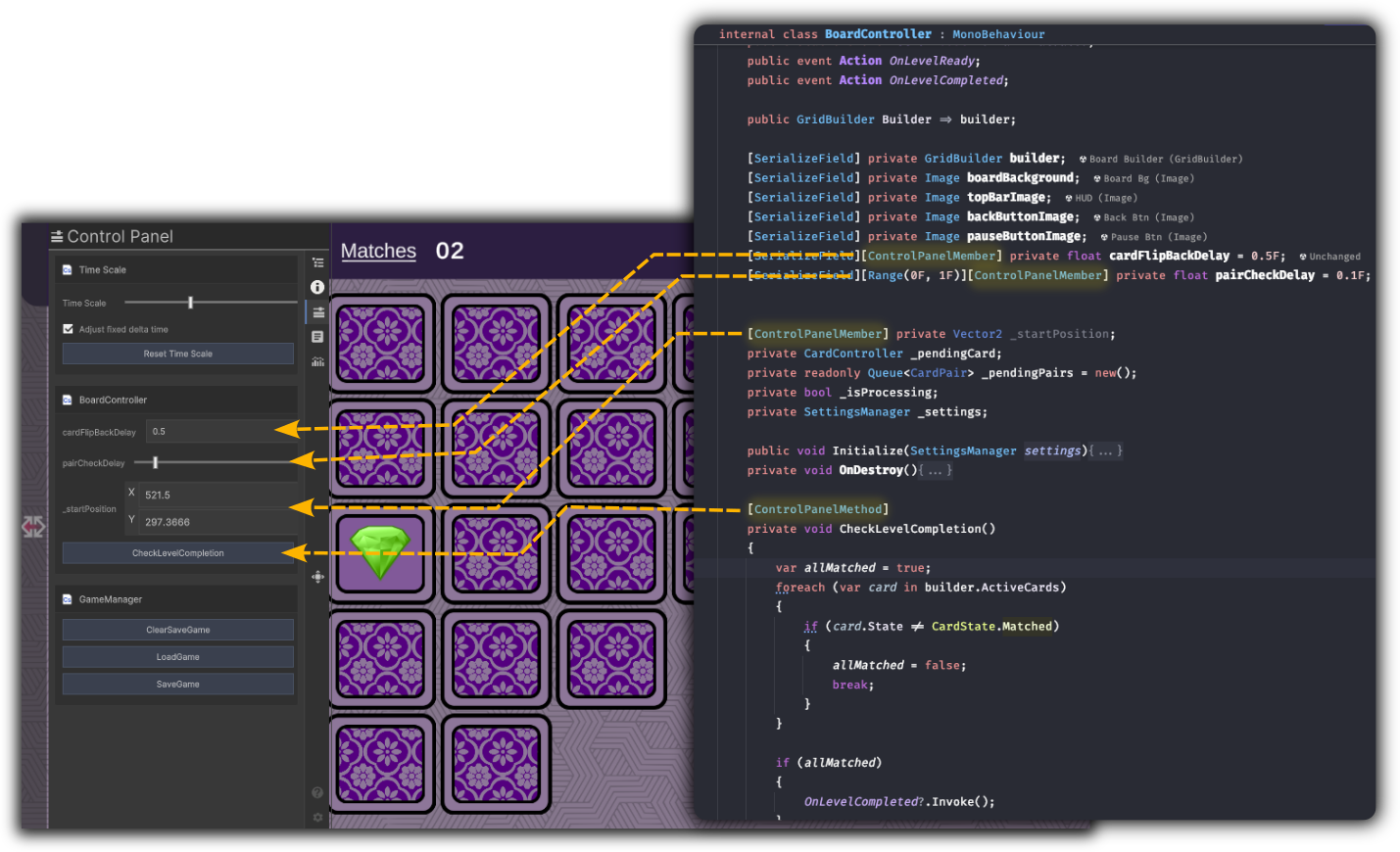
Overview
- Purpose: Tune game speed and physics at runtime, and expose your own fields and methods as sliders, toggles, and buttons.
- UI: A scrollable list of sections. The optional Time Scale section is at the top. Below it, entries are grouped by category (or flat), each showing a label and control (slider, toggle, dropdown, or button).
- Discovery: The panel finds all MonoBehaviour components in loaded scenes that have
[ControlPanelMember]or[ControlPanelMethod]and builds the dashboard from them.
Benefits
| Benefit | Description |
|---|---|
| Time Scale | Adjust game speed (0-3×), optionally scale fixed delta time, and reset with one click. |
| No code in UI | Expose members via attributes. No manual UI wiring. |
| Grouping | Optional grouping by [ControlPanelCategory] for a clearer layout. |
| Types | Support for int, float, bool, string, enum, Vector2/3/4. Use Range for min/max on numbers. |
| Methods | Parameterless methods become buttons (for example, "Reset", "Spawn", "Log"). |
How to use
Time Scale block (optional)
When Show Time Scale block is enabled in preferences:
- Time Scale: Slider 0-3 to set
Time.timeScale. - Adjust fixed delta time: Toggle. When on,
Time.fixedDeltaTimescales with time scale for consistent physics. When off, fixed delta time stays at its initial value. - Reset Time Scale: Button sets time scale back to 1 and reapplies fixed delta time.
Custom controls
- Add attributes to your MonoBehaviour:
[ControlPanelCategory("CategoryName")]on the class (optional): groups its entries under that name.[ControlPanelMember("Display Name", order)]on fields or properties: int, float, bool, string, enum, Vector2/3/4. Use[Range(min, max)]for numeric limits.[ControlPanelMethod("Button Label", order)]on parameterless methods: shown as a button.- Ensure the GameObject with that component is active and in a loaded scene.
- Open the Control Panel tab. Your controls appear, grouped by category if Group by category is on.
Attributes reference
| Attribute | Target | Purpose |
|---|---|---|
[ControlPanelCategory("Name")] |
Class | Category name for grouping. Default is the type name. |
[ControlPanelMember("Label", order)] |
Field, property | Expose as control (slider, toggle, text, dropdown, vector fields). |
[ControlPanelMethod("Label", order)] |
Method | Expose as button. Method must have no parameters. |
Supported types for members: bool, int, float, string, Vector2, Vector3, Vector4, and any enum.
Range: Use Unity's [Range(min, max)] on int/float for slider bounds.
Full API details: Control Panel API.
Example
using UnityEngine;

[ControlPanelCategory("Gameplay")]
public class GameplayTuning : MonoBehaviour
{
    [ControlPanelMember("Player Speed", 0)]
    [Range(0f, 20f)]
    public float playerSpeed = 5f;

    [ControlPanelMember("Enable God Mode", 1)]
    public bool godMode;

    [ControlPanelMethod("Respawn Player", 0)]
    public void RespawnPlayer()
    {
        // ...
    }
}
Technical notes
- Discovery walks all loaded scenes' root GameObjects and their active children, collecting MonoBehaviour components. Reflection is cached per type.
- Only instance members are considered. Supported field and property types are validated.
- Methods must have no parameters. Return type can be
void,bool, orint. - The dashboard is rebuilt when the tab becomes visible and on a refresh timer. Destroyed objects are filtered out.